Use Android Download History Before Starting the Same File Again
Pressing a download button several times can leave you with duplicate attempts rather than a faster result. On Android, check what the browser is already doing before requesting the same recording again. After using Y2Mate to choose an available copy of a source you are allowed to save, the browser's download history helps separate a completed file, an ongoing transfer and an attempt that needs attention.
The conversion page and the browser do different jobs. A page may prepare or display an output choice, while the browser handles transferring the selected file to your device. A page that still looks unchanged does not necessarily mean nothing is happening. Inspect the download entry before making another request.
Check the browser you actually used
Chrome on Android provides a Downloads list. Open that list through Chrome's controls and look for the item corresponding to your current attempt. Other Android browsers can organize downloads differently, so use the browser that started the transfer rather than assuming every application shares one identical history.
Read the status shown for the entry. It may indicate an active transfer, a completed item or a failure that needs inspection. Do not infer a guaranteed pause or resume capability: what is available depends on the browser, server and particular transfer.
Match the entry using its name, timing and other details shown. A file with a similar title from last week may not be the copy you just requested. This is especially important when several versions of the same recording have similar names.
Keep conversion progress separate from transfer progress
A result on the website is not the same as a completed browser download. Likewise, a browser download entry does not prove that the media contains the source you intended. These are separate checkpoints, and each answers a different question.
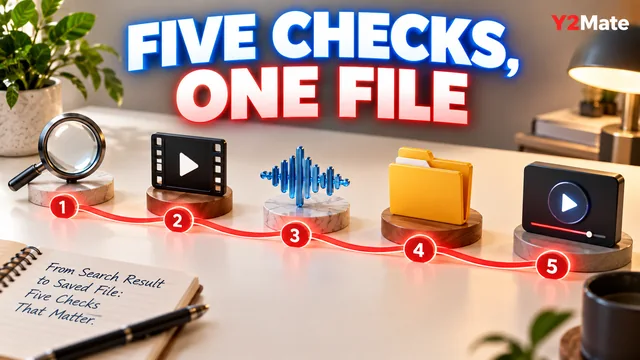
- The source result helps you confirm the recording.
- The output choice tells you what you selected.
- The browser status shows what happened to the transfer.
- The stored file lets you verify the actual contents.
On the mobile download page, move through those stages in order. Waiting for one attempt to become clear is usually more informative than opening several tabs and losing track of which result created which file.
Open the completed item from storage
When the browser reports completion, locate the downloaded item and inspect its type. Open the intended media in a suitable player already available on your device. Check a familiar passage and the ending rather than assuming that a successful transfer proves the recording is the right one.
A saved page, a shortcut or an unexpected installer is not the same as an MP3 or MP4. If the item does not match your intended output, stop and inspect the workflow. Do not install software or disable normal protections merely because an unexpected prompt asks you to do so.
If you need the file away from a connection, use the local playback test after locating it. A completed history entry is useful, but the intended player and actual storage location still need to be checked.
Retry deliberately when the attempt failed
If the download entry reports a failure, read the message before retrying. Check your connection and available storage through your device's ordinary controls. If the browser offers a relevant retry action, decide whether it fits the reported problem; do not assume every failure can be resumed from the same point.
Make one new attempt at a time and track which entry belongs to it. If the same failure repeats, stop creating duplicates and inspect the source or output choice. A provider limitation or unavailable result may not be solved by pressing the button more often.
For a phone with little free space, the storage planning article explains how to prioritize a useful copy without deleting important personal files impulsively. An unfinished transfer and several duplicate copies can make a cramped device harder to manage.
A simple example with one recording
Suppose you are saving your own five-minute spoken practice video as an available audio copy. Confirm the source, choose the output and check Chrome's Downloads list. If an entry is active, allow it to finish instead of requesting another copy because the page has not changed.
After completion, open the file and listen to the opening sentence and closing passage. Give it a recognizable name if necessary. If you discover that you saved the wrong version, you now have a clear reason to return to the source rather than a vague impression that the browser was slow.
The useful habit is to ask “What happened to my existing attempt?” before “Should I start again?” Download history cannot guarantee that every source will work, but it gives you a concrete place to inspect the transfer and avoid unnecessary repetition.