From Search Result to Saved File: Five Checks That Matter
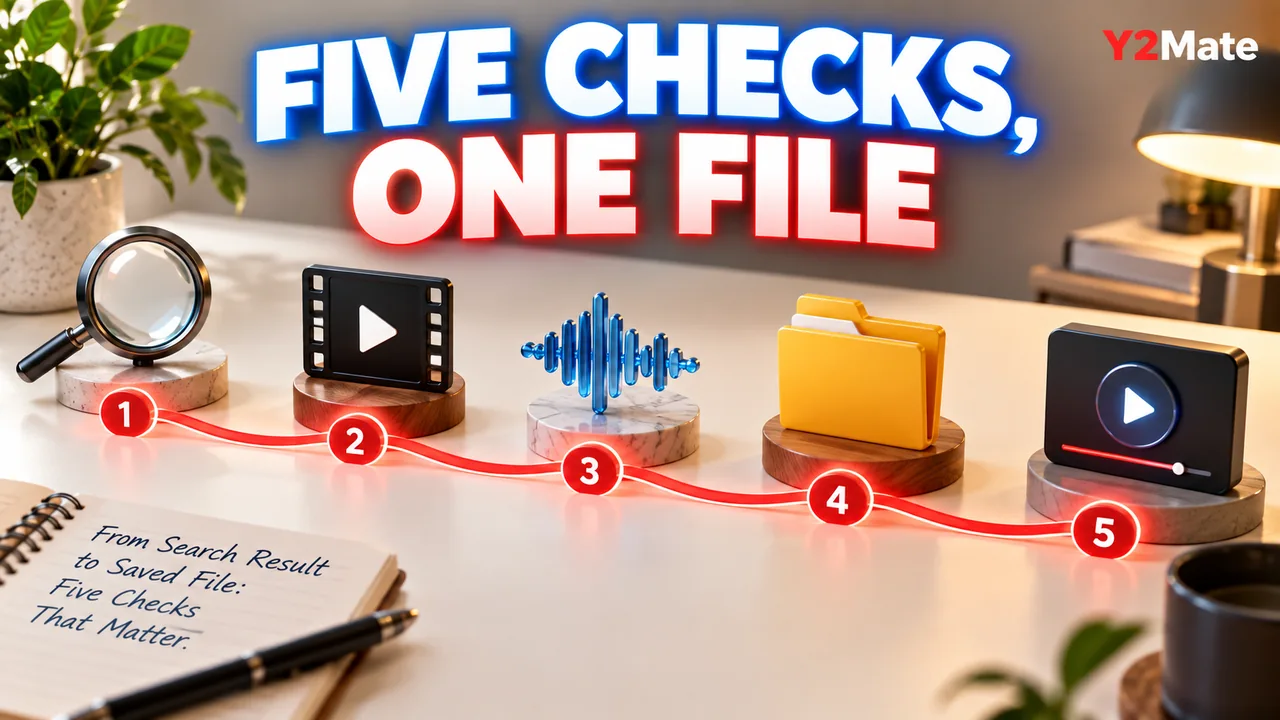
A search result is the beginning of a download workflow, not proof that the right file has reached your device. When using Y2Mate, keep five checkpoints separate: source, purpose, output, transfer and playback. Each answers a different question. Together they help you identify an ordinary mistake without immediately blaming the browser, format or converter.
Consider your own short workshop video as an example. You want a copy for reviewing the spoken explanation on another device. The useful result is not merely a page with the workshop title. It is the correct recording, in an available format suited to review, fully transferred and playable in the environment you intend to use.
1. Confirm the actual source
A title can appear in several uploads, edits or performances. Compare the creator, description and recognizable content where available. If you have the exact source URL, use it to reduce ambiguity, but still check that the displayed recording is the one you meant to select.
Keywords are useful for discovery, while a known link is useful for a specific source. Neither method establishes permission to save or redistribute the material. Use recordings you own or are allowed to download, and keep that decision separate from whether a result is technically accessible.
For the workshop example, check a passage containing your own explanation rather than relying only on a familiar thumbnail. A similarly named recap may not include the section you need.
2. State what the saved copy must do
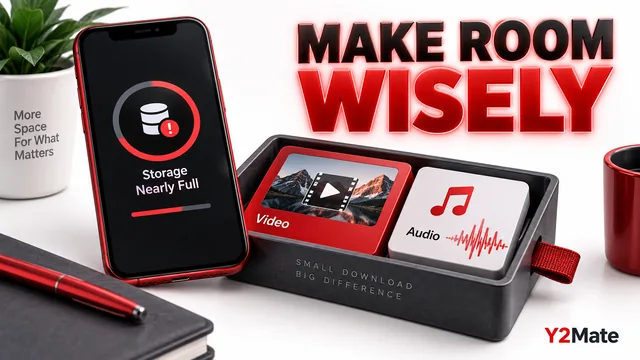
If your goal is to listen to the spoken explanation, an available audio copy may be enough. If you need to follow a diagram or a sequence of on-screen actions, the picture may be essential. Decide this before collecting several formats.
The YouTube downloader page provides a starting point for either audio or video choices. The right decision depends on the task, not on a blanket claim that MP3 or MP4 is always better. Removing the picture can save an unnecessary component, but only if it does not remove the information you came for.
Also consider the destination. A file intended for a phone, a presentation or another device should be tested in that environment. Playback somewhere else is useful evidence, but not a universal compatibility promise.
3. Inspect the output actually offered
Use the options shown for the supported source. Do not assume that every video provides the same resolution, bitrate or format simply because another recording did. Read the labels carefully and choose one relevant output rather than repeatedly selecting unfamiliar options.
A format label is a description to investigate, not a guarantee that missing source detail will be restored. A larger audio file cannot recreate a cleaner original microphone recording. A higher-sounding video label does not ensure that tiny text will become readable.
If no offered choice meets the task, pause. For your own material, the original project or recording may provide a more appropriate export route. Repeatedly requesting an unsuitable option does not change its fundamental purpose.
4. Confirm the browser transfer
A conversion result appearing on a webpage is not the same as the browser finishing a download. Inspect the browser's download status and locate the completed item. If the transfer is active, failed or blocked, address that state before judging the resulting media.
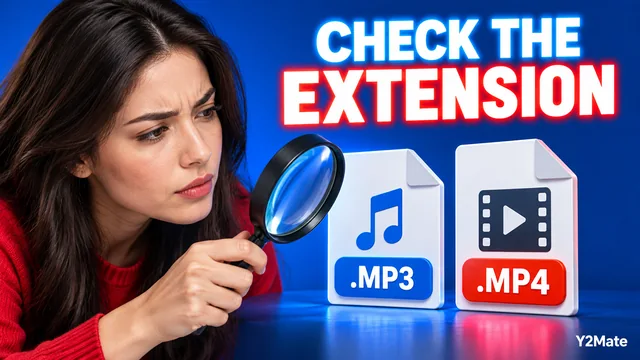
Check the complete filename and type. An unexpected installer or saved webpage is not the MP3 or MP4 you intended. Keep normal protections enabled and do not install unfamiliar software merely to satisfy an unexpected prompt. The file-extension checklist explains this inspection on Windows.
On other devices, use the browser and file-management tools appropriate to the system. The essential question remains the same: where is the actual media file, and did its transfer finish?
5. Test the real file
Open the saved copy from storage with the player you plan to use. Check the beginning, a meaningful middle passage and the ending. Compare a recognizable part with the source so that you can identify a wrong version, incomplete copy or unexpected track.
For video, test picture and sound together. The MP4 playback checklist keeps ordinary mute and output checks separate from file-format questions. For use away from a connection, follow the local-file readiness test rather than depending on a saved page.
Give the verified copy a recognizable name and retain any important original separately. This closes the loop between the source you selected and the file you will actually use.
Stop at the checkpoint that failed
If the source is wrong, correct the source instead of adjusting playback settings. If the browser transfer failed, inspect that failure before investigating codecs. If the file opens but lacks essential visuals, reconsider the format rather than assuming that audio quality is the issue.
These five checks do not promise that every source or device will work. They provide a clear way to understand the result, avoid duplicate attempts and keep the final copy aligned with the reason you wanted it in the first place.