
Check Both Picture and Sound in an MP4 Download
A recognizable opening frame is only part of a successful video check. You also need the expected sound, a complete timeline and playback that works in the player you intend to use. After preparing an available MP4 copy through Y2Mate, open the actual downloaded file rather than judging it from a result thumbnail. This gives you a much clearer picture of what reached your device.
An MP4 is a container that can hold different media streams. Its extension alone does not tell you every detail of the audio and video inside. If the picture plays but the sound does not, several explanations are possible. Work through simple, reversible checks before assuming that a new conversion or a new piece of software is required.
Check the player before diagnosing the file
Start with the ordinary controls. Is the player muted? Is its volume different from the device volume? Is audio being sent to a connected headset or another output rather than the speaker in front of you? These checks may seem basic, but they prevent a working file from being blamed for a playback setting.
Open a familiar local video in the same player and through the same output device. If that file is also silent, the new download is not the only suspect. If the familiar file plays normally, return to the downloaded copy and continue comparing. Keep the listening level comfortable throughout.
A problem in one headphone channel needs a slightly different investigation. The one-ear audio checklist helps distinguish a channel arrangement from an output problem without changing several settings at once.
Inspect more than the first few seconds
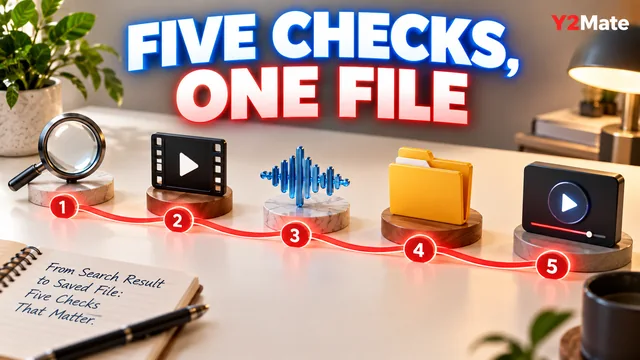
The opening may contain a silent title card while speech begins later. Conversely, an introduction can play correctly even when the file is incomplete farther along. Sample the beginning, a meaningful middle section and the ending. Choose sections where you know whether there should be speech, music or visible movement.
- Confirm that the expected content appears near the beginning.
- Find a passage where picture and sound belong together.
- Compare a middle section with the source.
- Check the final scene or closing sentence.
- Look at the reported duration as another clue, not the only proof.
For a spoken demonstration, watch a familiar action and listen to its explanation. Do not diagnose synchronization from a source in which the narration was deliberately recorded separately. A meaningful comparison depends on knowing what the original actually contains.
Keep missing audio and unsupported audio separate
A silent playback does not, on its own, reveal whether the file has no audio stream or whether the player cannot decode the stream that is present. MP4 can contain different combinations of video and audio codecs, and support depends on the player and system as well as the container.
If your existing player offers media information, inspect what it reports about the file. Another player already available on your device can provide a useful comparison. Neither action requires you to rename the extension or install software from an unexpected prompt.
The article on MP4 containers and codecs explains why two files with the same extension can behave differently. It also helps you record useful details instead of guessing a codec from a thumbnail or title.
Confirm the source and the offered output
On the YouTube to MP4 page, verify the intended recording before selecting an available output. A similar title may refer to a silent version, a different edit or another upload. The selected source is part of the troubleshooting process, not merely a step to rush past.
Read the actual output labels shown for that source. Do not assume every option has the same streams or that a larger resolution label automatically answers an audio question. This site should not be taken as a promise that every video will offer every format or a universally compatible result.
Wait for the browser's transfer to finish before opening the final file. A page displaying a conversion result and a browser completing a file transfer are different events. If the transfer failed, address that failure rather than treating an unfinished copy as a valid format test.
Keep a short record of the result
If something still does not work, note the source, selected option, filename, player and the exact behavior. “Picture plays; familiar local videos have sound; this file is silent in two existing players” is much more useful than “MP4 does not work.” It keeps the observation separate from a diagnosis you have not established.
For a file that passes, keep the verified copy with a recognizable name. A quick beginning-middle-ending check is a small investment before a presentation, a handoff or travel. It cannot prove every future device will support the file, but it confirms that the intended media works in the environment you actually tested.