Sound in One Ear? Check the Playback Before Converting Again
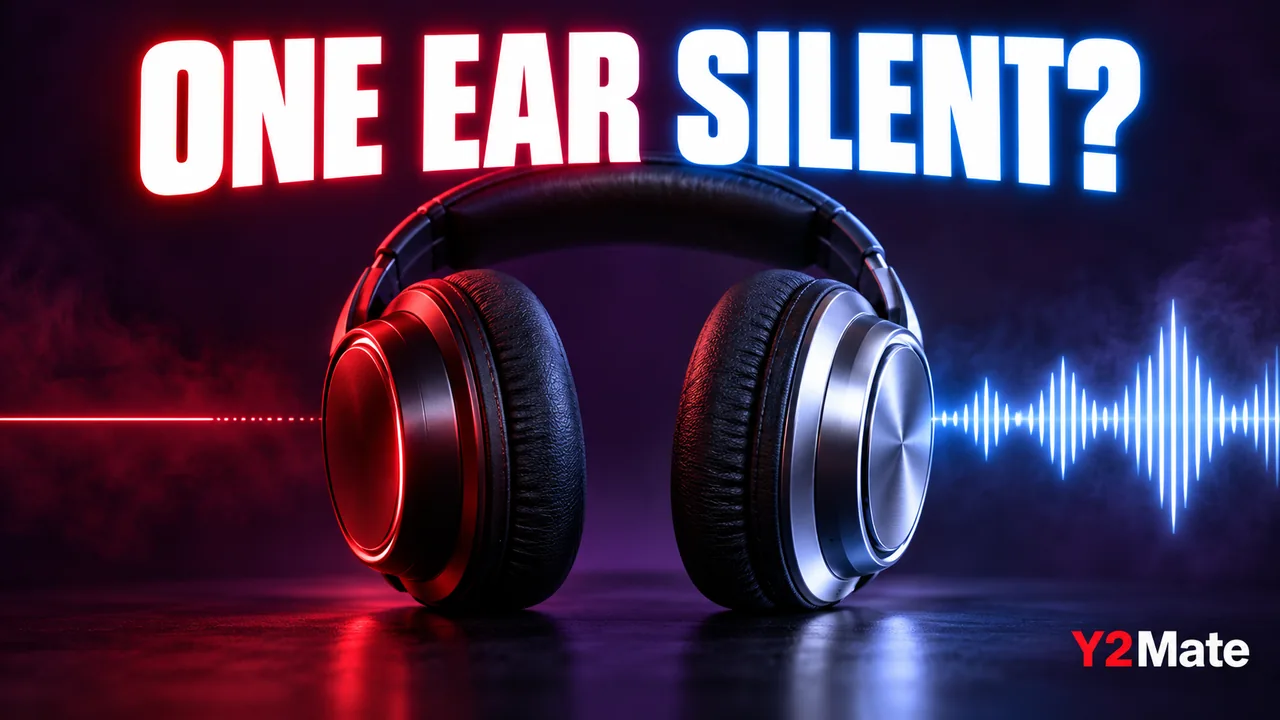
If a saved MP3 is audible through only one side of your headphones, another conversion is not always the right first step. The recording, the player, the connection and the headphones are all worth separating. After using Y2Mate to prepare an available audio copy of a source you are permitted to save, start with a few reversible playback checks. They can tell you whether the issue follows one file or appears across everything you play.
Do not turn the volume sharply upward to compensate for a silent ear. Keep a comfortable level and compare short passages. The goal is to establish where the difference occurs, not to make a quiet channel compete with a loud one. A careful test usually provides more useful information than a series of new files with similar names.
Stereo does not mean identical sound on both sides
A stereo recording can contain separate left and right channels. Those channels may carry different instruments, voices or room sound. A voice placed mainly on one side can therefore reflect a production choice or the way the source was recorded. It is not automatically evidence that a conversion deleted half the audio.
Mono and stereo also describe the recording differently from the physical number of headphone speakers. A player can present mono material through a stereo output, depending on its behavior and settings. Avoid diagnosing the file from the headset alone without checking the source and another known recording.
For example, an interview recorded with one microphone assigned to each channel may sound noticeably different from a centrally mixed narration. Compare the same speaker's passage in the source before deciding that the saved copy has changed.
Begin with a recording you already trust
Open a familiar local file that you know normally plays through your headphones as expected. If that file also appears in only one ear, the newly downloaded MP3 is not the only place to investigate. Check the physical connection, the selected output device and the equipment's ordinary controls.
Balance settings are another possibility, but their location varies by device and operating system. Use the instructions for your own device rather than following a guessed universal menu. Note the original setting before changing anything so that you can restore it. You should not need to install an unfamiliar application or disable a security feature merely to test whether both sides work.
- Confirm that the intended headphones or speakers are selected.
- Check an accessible cable or connector without forcing it.
- Compare a known recording at the same comfortable volume.
- Try another output device already available, if practical.
Compare the source and the saved file
Return to the exact passage that sounded wrong. Listen to the source and then the saved copy through the same working output path. If the same speaker is confined to one side in both, another export from that source is unlikely to change the original channel arrangement automatically.
If the source sounds different, open the saved file in another player you already use. That comparison helps distinguish a player-specific result from behavior that follows the file. It does not prove a precise codec fault, but it gives you a better next question than “Why is every download broken?”
When using the YouTube to MP3 converter page, confirm the selected video and the actual offered output. Two similarly titled recordings can have different mixes, edits or channel arrangements, so a source mismatch can look like an audio problem.
Check the complete recording before keeping it
One passage may not represent the entire file. Listen near the beginning, during another speaker's section and close to the ending. Note whether the channel behavior is constant or changes with the recording. A different microphone setup in a later section can explain why only part of an interview sounds unbalanced.
If you are checking an MP4 rather than an MP3, inspect picture and sound together. The MP4 picture and sound checklist explains why a visible frame alone does not confirm that the audio is ready to use. For general hiss or traffic instead of a channel imbalance, follow the more relevant source-noise comparison.
Know when another conversion is useful
A new transfer may be worth considering if the first one did not finish or if you selected the wrong source. It is less useful when the saved file accurately reproduces an unusual channel arrangement already present in the source. Keep these situations separate so that you do not repeatedly request an identical result.
For your own recordings, any deliberate remix should begin with the best available original and be saved as a separate edited copy. Simply changing the extension is not a remix, and an MP3 label does not promise that voices have been centered. Preserve the original so you can compare your changes.
The most useful outcome is a clear observation: the issue follows the headphones, one player, one file or the original recording. Once you have that distinction, you can choose a proportionate next step without guessing or sacrificing working settings.