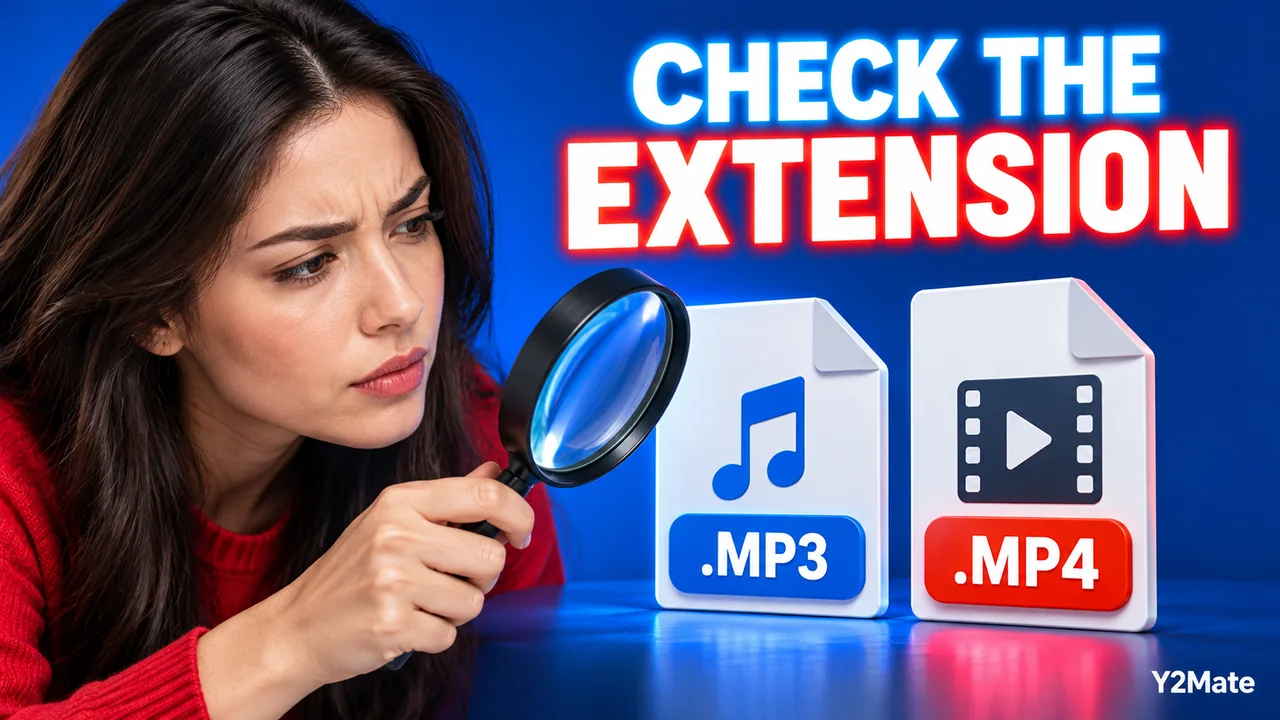
Check the Real File Type Before Opening a Download
A familiar song title or a recognizable icon does not tell you everything about a downloaded file. Before opening an MP3 or MP4 copy, check the complete filename and the type your device reports. If you used Y2Mate to find an available download of a recording you are allowed to save, the expected result is media, not an unexpected program or installer. Pause when the file does not match that expectation.
This check is particularly useful on Windows when filename extensions are hidden. A short visible name may conceal information that helps you distinguish an audio file from another kind of item. Showing extensions improves visibility, but it is not a complete security guarantee. Keep normal browser and operating-system protections enabled and do not bypass warnings just to finish a download.
Show filename extensions in File Explorer
In Windows 11 File Explorer, the documented setting is View > Show > File name extensions. This displays the extension at the end of a filename, such as .mp3 or .mp4. Other Windows versions or layouts may present the control differently, so use the instructions for your installed version if the menu does not match.
Once extensions are visible, inspect the whole name rather than stopping at the first familiar word. A name such as interview.mp3.exe ends in .exe, not .mp3. The earlier MP3 text is part of the name and does not turn the item into audio.
This is a reason to slow down, not an invitation to experiment by opening the file. An unexpected extension should be resolved before you decide whether the item belongs in your media folder.
Recognize the category you expected
MP3 identifies an audio format, while MP4 identifies a media container often used for video and audio. Windows program and installer formats include extensions such as .exe and .msi. Those are different categories from an ordinary saved audio or video file.
If your goal is to play an interview, an unsolicited installer is not the result you were trying to obtain. Do not install software merely because a page or prompt says it is necessary. Return to the actual download workflow and inspect what happened instead of granting additional access.
A correct-looking media extension alone also does not prove that a file is trustworthy or complete. It is one useful piece of information alongside the source, browser status, file properties and normal security checks.
Do not repair a mismatch by changing the name
Renaming an extension does not convert the contents. Changing an unexpected file to end in MP3 will not make it valid audio. It can hide the original clue and leave you with a misleading name that is harder to investigate.
Likewise, renaming one video extension to another does not change its codecs or guarantee compatibility. The article about MP4 containers and codecs explains the difference between a file's package, its encoded streams and the name you see in a folder.
If you only want a clearer title for a verified media copy, rename the descriptive part while preserving the real extension. The filename checklist shows how to make that change without pretending it is a conversion.
Keep the page and the file separate
A browser can save a webpage as well as transfer a media file. A saved page or shortcut may reopen a site instead of playing the audio you expected. Inspect the item in storage and confirm that it is the media copy you intended, not just a bookmark, page archive or link.
On the YouTube downloader page, first confirm the source and the available output. Then watch the browser's download status. A conversion result appearing on a page is not the same as a completed file transfer, and a new tab is not evidence that an MP3 reached your device.
If the browser reports a blocked or failed transfer, do not disable protection as a troubleshooting shortcut. Read the message, verify the source and stop if the requested action no longer matches saving ordinary media.
Use an inspect-before-open routine
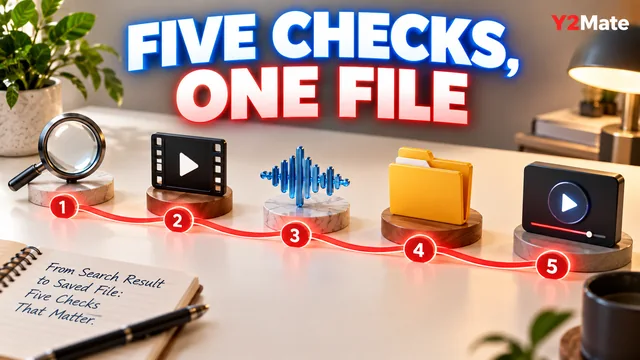
- Find the item through the browser's download list or your chosen download folder.
- Check the complete filename with its extension visible.
- Compare the file type with the audio or video output you intended.
- Confirm that the browser reports a completed transfer.
- Keep security warnings and unexpected installer requests separate from normal playback.
- Open only the intended media through a trusted player already on your device.
After opening a legitimate media copy, check a recognizable passage and the ending. A sensible filename is useful, but content and completeness still matter. This short routine makes the download easier to understand without promising that any one extension, icon or website label can prove absolute safety.