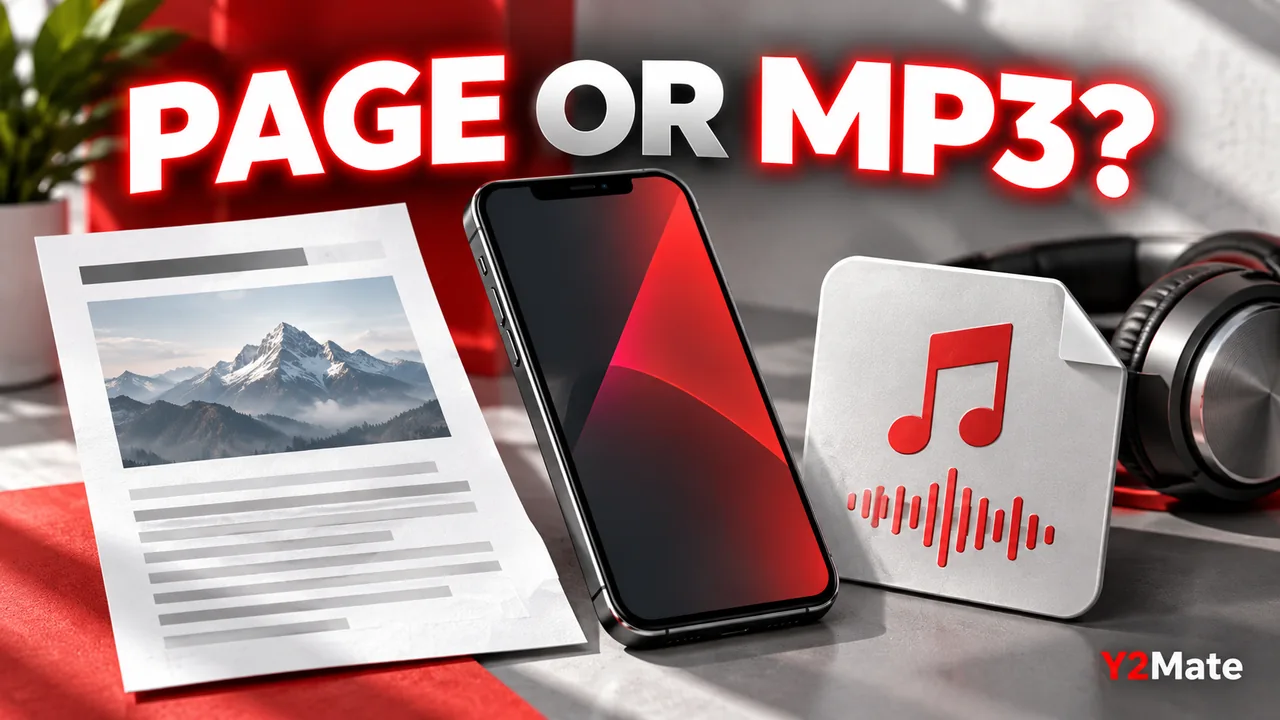
On iPhone, a Saved Webpage Is Not the Same as a Saved MP3
Returning to a conversion page on your iPhone does not necessarily mean the audio has been stored as a file. A bookmark, a browser tab and a downloaded MP3 are different things. After choosing an available authorized copy through Y2Mate, check the item in your device's files rather than relying on the page you used to request it. This is the clearest way to establish what you actually saved.
The distinction becomes important when you want to listen later, rename a recording or share your own material. A webpage may simply lead back to the conversion workflow. A media file should be identifiable in storage and open as the recording you expected. Start by finding that item before repeating the download.
Recognize what each saved item does
A bookmark remembers a webpage location. An open tab keeps a page available in the browser. Neither, by itself, proves that the page's media has been transferred into a standalone MP3. Saving a webpage can also preserve page content without creating the audio file you intended.
A downloaded MP3 is a different object: an audio file with its own name, size and contents. The important test is whether you can find and open that file through storage. A familiar page title or thumbnail is not sufficient evidence because the same title can appear on both a webpage and a media result.
If tapping an item merely returns you to a conversion form, inspect what the item is. Do not assume it is broken audio when it may actually be a saved page or link.
Look in Files and the browser's download controls
Apple documents the Files app as the place to find downloaded files on iPhone. A commonly documented location is the Downloads folder in iCloud Drive, but your chosen download location and settings can differ. Inspect the location your device actually uses rather than treating one folder as a universal guarantee.
Safari also provides a Downloads control for checking downloads. If you used a different browser, use that browser's own download list and instructions. The list can help identify the filename and transfer status, but you should still locate the actual item before deciding it is ready for later playback.
When preparing a copy from the mobile audio and video page, allow the transfer to finish before leaving the workflow. A result appearing on the website and a file reaching your chosen storage location are separate stages.
Check the file rather than its label alone
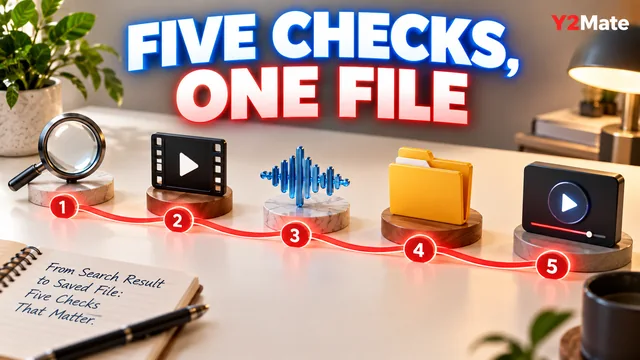
Inspect the complete name and the type shown by your device. Then open the media through a suitable player already available to you. Listen to a recognizable passage and check the ending. This confirms more than seeing a familiar title in a list.
- Is the item an audio file rather than a page or shortcut?
- Does the filename match the recording you intended?
- Did the browser finish the transfer?
- Does the file open and contain the expected voice or music?
- Can you identify where the copy is stored?
An MP3 downloaded through a browser should not be assumed to appear automatically in the Apple Music library. Finding it in Files and opening it is a separate workflow. Avoid promising yourself a library import that you have not actually performed or verified.
Check availability before relying on the copy
A file shown in a cloud-backed location is not always the same as a file confirmed available without a connection. Storage services and settings can affect whether the contents are presently on the device. Verify the specific copy you plan to use rather than generalizing from the folder's name.
If you need the recording during travel, test it through the intended player beforehand. The local-file readiness checklist focuses on the saved media, not on making the Y2Mate website operate offline. A browser bookmark does not replace that test.
Keep any important original recording separate while experimenting. Finding a listening copy should not require deleting source files, resetting the phone or granting broad access to unfamiliar software.
Use a small recording to confirm the workflow
For your own short practice interview, begin with the correct source link and choose an available audio output. Once the browser finishes, locate the file, open it and listen to the first question and final answer. Then give the verified copy a recognizable name if necessary.
The article on clear media filenames explains how to preserve the genuine extension while improving the descriptive part. A good name makes it easier to distinguish the real MP3 from the webpage that helped you obtain it.
If no media file is present, return to the browser's download status and inspect the result. Do not repeatedly request new copies before checking the existing attempt. Keeping pages, transfer status and stored files separate makes iPhone downloads much easier to understand.