Does Playback Speed Change the File You Download?
A twenty-minute recording can take less than twenty minutes to hear when you turn up the playback speed. That does not necessarily make the recording itself shorter. If you use Y2Mate to find an available download of a video you own or are allowed to save, treat the player's speed setting and the downloaded file as two separate things. One changes how a player presents the recording; the other would require a change to the media that is stored.
This distinction matters for lectures, interviews and language practice. You might listen to a familiar passage quickly, then slow down for an unfamiliar word. Those choices are useful playback preferences, but they are not instructions that every YouTube to MP3 converter will inherit. Check the actual saved file before assuming that its timing, voice or duration has changed.
A speed control changes the listening session
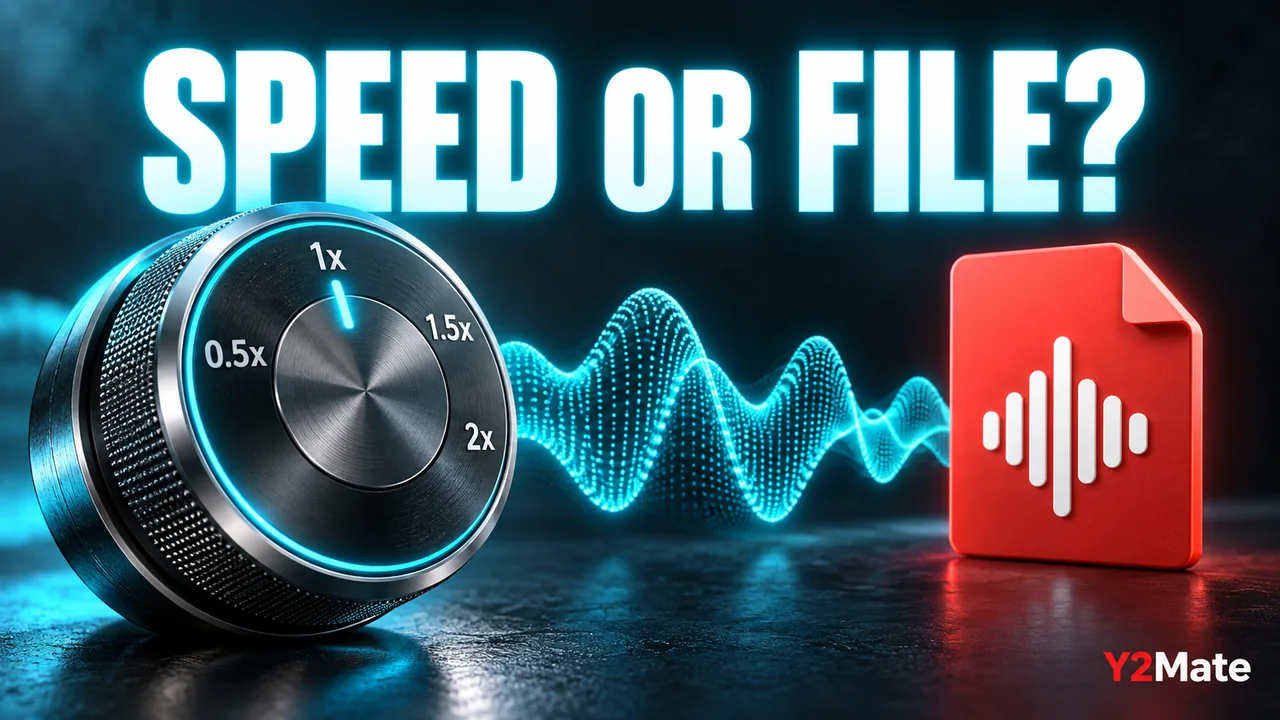
Playback speed is a multiplier applied while a player reads a source. At a faster setting, the player moves through the recording more quickly. At a slower setting, the same passage takes longer to hear. The original sequence can remain unchanged even though your experience of it is different. Different players may also handle voice pitch differently, so speed alone does not describe every audible result.
Consider an interview with a displayed duration of twenty minutes. Listening at 1.5 times normal speed would take roughly thirteen minutes and twenty seconds if you played it without pauses. That is an illustrative timing calculation, not a claim about a download option. The file can still report twenty minutes because its normal-speed media timeline has not been edited.
The practical question is therefore not “Was the video fast when I heard it?” It is “Did a tool deliberately export a new, speed-adjusted recording?” A browser setting by itself does not establish that a new export exists.
Check the saved copy at normal speed
Start with a recording whose opening you recognize. On the YouTube to MP3 page, confirm the correct source and use only an audio option that is actually offered. After the browser finishes transferring the file, open that file from your device's storage. Do not rely only on a conversion-page preview, which may be a separate player.
- Look at the saved file's reported duration.
- Set your chosen local player to its normal playback speed.
- Listen to a familiar sentence near the beginning.
- Compare a later passage with the source at normal speed.
- Check the ending so that a shorter transfer is not mistaken for a deliberate speed change.
If the local player remembers a previous fast setting, an unchanged file may still sound accelerated. Resetting that setting is a reversible check. It is more informative than immediately starting another conversion of the same source.
An edited export is a different file
Making a permanently shorter or slower recording requires an editing or export step that changes the stored media. That may affect duration, sound and file size, depending on the editor and its settings. It should be a deliberate choice rather than an assumption about a download link. Y2Mate should not be treated as a speed editor unless that function is explicitly provided and verified.
If you need a fixed-speed copy for a project, retain the original first and work on a separate version in an appropriate editor. Name the result clearly so that it cannot be confused with the untouched recording. Our explanation of a listening copy versus an original recording is useful when deciding which version to keep for future work.
For personal listening, changing your player's speed may be enough. It keeps your options open: the same saved recording can be played normally today and more slowly tomorrow without making several edited copies.
Choose a workflow that matches your purpose
For interview review, keep a normal-speed copy and use playback controls to move through familiar sections. For pronunciation practice, begin at normal speed, slow down a difficult phrase if your player supports it, and return to normal speed to hear the rhythm. The language-practice workflow explains why a clearly audible voice track matters more than a translated title.
For a timed presentation, check the duration of the actual file used in the presentation software. Do not calculate your schedule from a browser session that included pauses, skips or a faster setting. A complete play-through of the intended copy is the most direct way to assess the timing you will rely on.
Common questions
Will a faster YouTube setting automatically create a faster MP3?
Do not assume so. A playback setting and an exported media file are different. Inspect the offered download options and test the saved copy at normal speed.
Why does a newly opened file still sound fast?
The player may have retained a speed preference, or the source may already contain accelerated audio. Compare a familiar passage with a normal-speed source before deciding that the conversion changed it.
Keep the decision simple: confirm the source, finish the transfer, check the real file and separate player preferences from permanent edits. That sequence makes an unexpected duration or voice much easier to understand.